
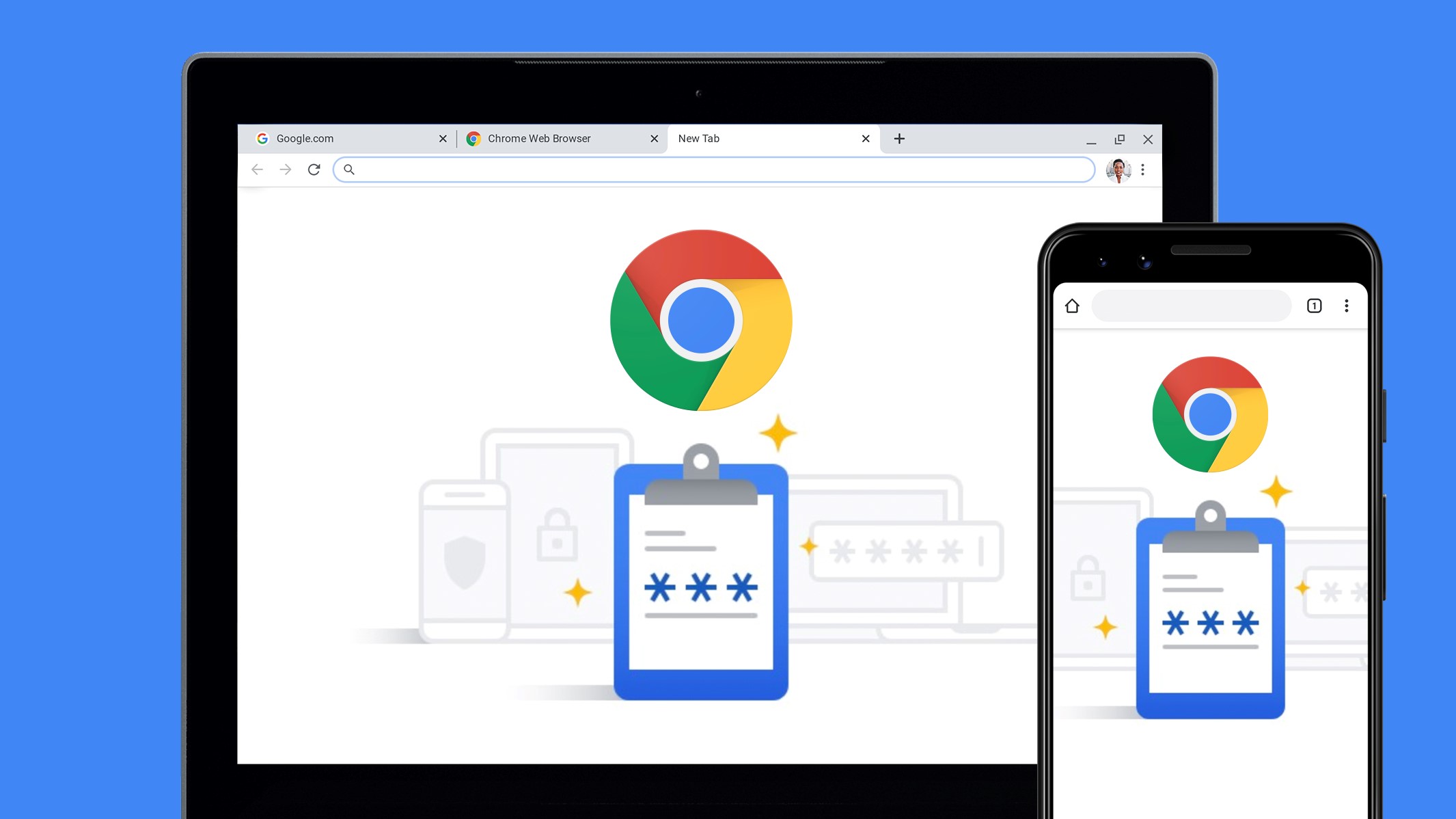

While conventional wisdom on the internet often advises against using a browser’s built-in password manager, Chrome, in particular, receives a heavy dose of criticism despite its popularity. Critics cite Google’s lack of zero-knowledge encryption, limited features for secure sharing and protection against unauthorized access, and the perceived confinement within a single ecosystem as significant drawbacks. However, these criticisms tend to overlook a crucial fact and fail to keep up with recent advancements in Chrome’s password manager.
Let’s pause for a moment to consider this: opting for Chrome (or any major browser) to handle your passwords is, in itself, a significant step towards enhancing your online security. Google has made notable improvements to its password manager, including the ability to restrict access using Windows Hello and alerting users to weak, reused, or compromised passwords. Additionally, forthcoming features such as password sharing within Google family groups and the ability to export passwords further enhance its functionality.
Moreover, transitioning to a dedicated password manager when you feel ready is a straightforward process. You can effortlessly export your passwords to a CSV file and then import them into the new manager. While upgrading to an independent password manager is advisable for tighter encryption, advanced features, and added security, there’s no need to fret about using Chrome’s password manager in the interim. Just ensure you handle your passwords securely, such as disabling autofill and leveraging additional authentication measures for your Google account.
In essence, while the transition to a dedicated password manager may be the ultimate goal, using Chrome’s password manager is a pragmatic step towards bolstering your online security, provided you take necessary precautions to safeguard your credentials.