

Using the OCR feature in the Windows Photos app, you can instantly extract the text inside any image with one click.
Microsoft has added an OCR function (Optical Character Recognition) to the Windows Photos app, which basically means it can now recognize text in an image and instantly extract it for you.
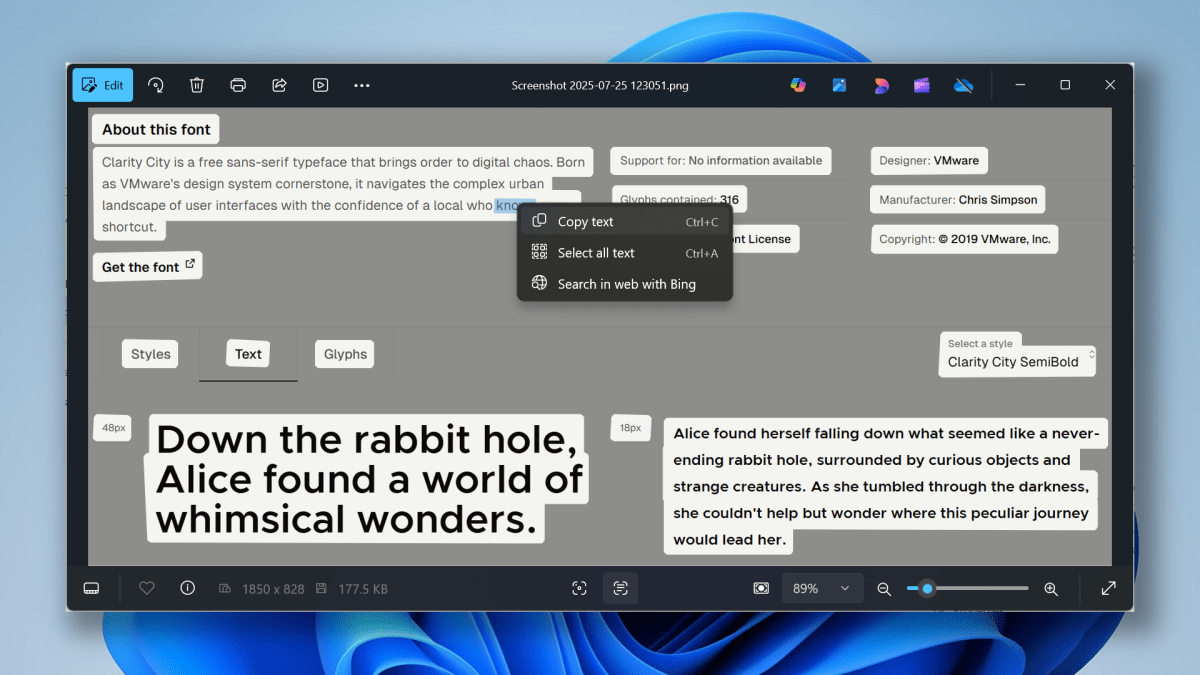
To use this feature, open any image that contains words or lines of text using the Photos app. Then, click on the “Scan text” button—which looks like a rounded square with three lines of text inside—located at the bottom of the app window. It’s right next to the “Visual search with Bing” button. You can’t miss it!
Joel Lee / Foundry
Once clicked, the Photos app will scan the image and highlight all of the text it finds. You can then interact with it like it’s actually text, meaning you can highlight passages with your cursor and right-click to perform actions like copying text, selecting all text, or using Bing Search to look up whatever text you currently have highlighted.
This is a great feature to use if you’re constantly dealing with screenshots of documents or web pages and need a quick way to pull all of the text (or specific bits of text) out of them.