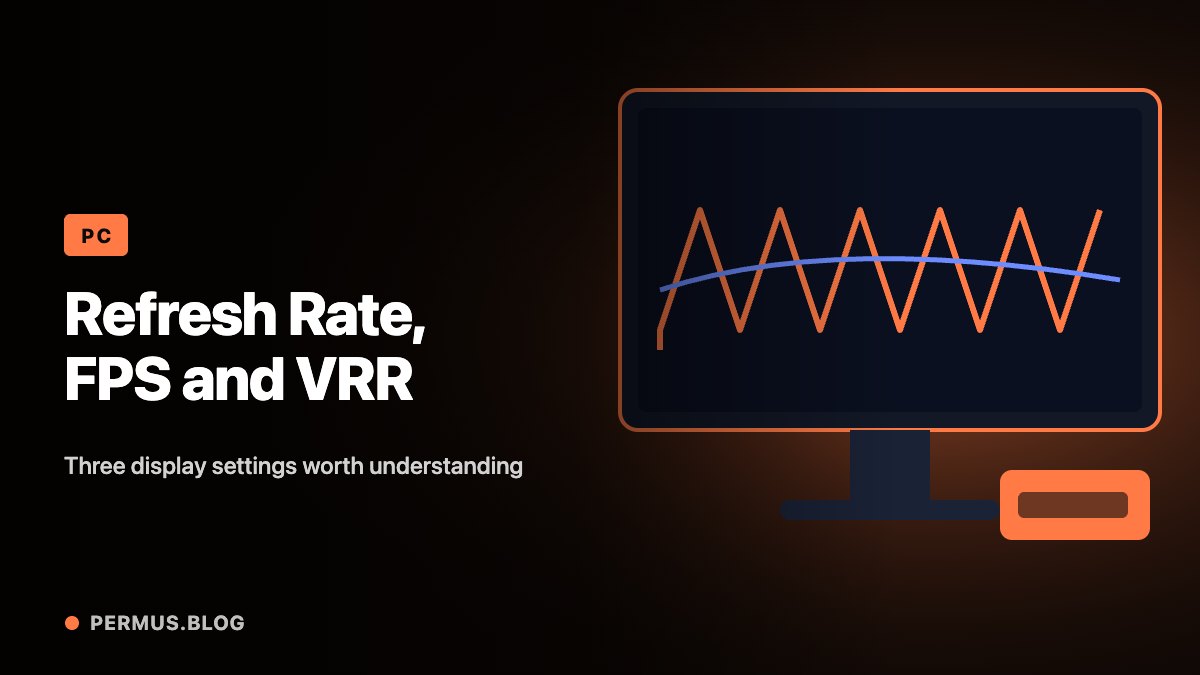
A high-refresh-rate monitor does not automatically make every game run at the number printed on the box. The display, the graphics workload, and synchronization settings all contribute to the result.
Refresh rate describes how frequently the screen updates. Game frame rate describes how frequently the system produces frames. Variable refresh rate connects those two activities more closely when the hardware and configuration support it.
Understanding these roles makes display troubleshooting more precise.
Confirm the active refresh rate
Microsoft defines refresh rate as the number of screen updates per second. In Windows, Settings > System > Display > Advanced display shows information for the selected display, including its current resolution and refresh rate.
Start there rather than assuming a monitor is already using its advertised maximum.
If multiple displays are connected, select the intended monitor before changing anything. Record the current resolution and refresh rate together. A number without its accompanying display mode gives an incomplete picture.
For an office user, the first useful comparison may be ordinary scrolling or moving windows. For a gamer, the comparison should include a repeatable section of a game.
Keep rendering performance separate
A display capable of frequent updates does not guarantee that a demanding scene can be rendered equally quickly.
Consider a hypothetical game that produces around 70 frames per second on a display configured for 144 Hz. Increasing the display’s selected refresh rate does not, by itself, make the game produce 144 distinct frames.
This distinction helps identify the right next step. If the game slows only in complex scenes, investigate the workload and graphics settings. If the desktop itself appears to use a lower refresh rate than expected, investigate the selected display mode first.
Change one factor at a time. Otherwise, an improvement may be real but difficult to explain or reproduce.
Understand what VRR contributes
NVIDIA describes G-SYNC as technology that matches a compatible monitor’s refresh rate to the GPU’s frame rate. Its documentation identifies display compatibility as a requirement.
This illustrates the purpose of variable refresh rate: coordinating display updates with frame delivery.
The useful question is therefore broader than “Does this monitor support a high number?” It is also “Does this complete configuration support the synchronization mode I intend to use?”
Check the documentation for the actual monitor and graphics system. Similar product names or related model families should not substitute for that check.
Distinguish Windows DRR from a gaming configuration
Windows Dynamic Refresh Rate adjusts refresh rate according to activity. Microsoft states that DRR requires a display supporting VRR and at least 120 Hz. It also notes that DRR can limit the maximum refresh rate of some games and recommends disabling it if that behavior affects a particular game.
For a laptop used for both writing and gaming, this introduces a practical tradeoff. A setting appropriate for general mobile use may need separate evaluation during play.
Build a small test routine: confirm the active display mode, use the same application scene, observe the result, and record the settings. Judge the experience by consistency and responsiveness as well as the headline number.
The goal is a display configuration that matches the work the computer can actually deliver.