
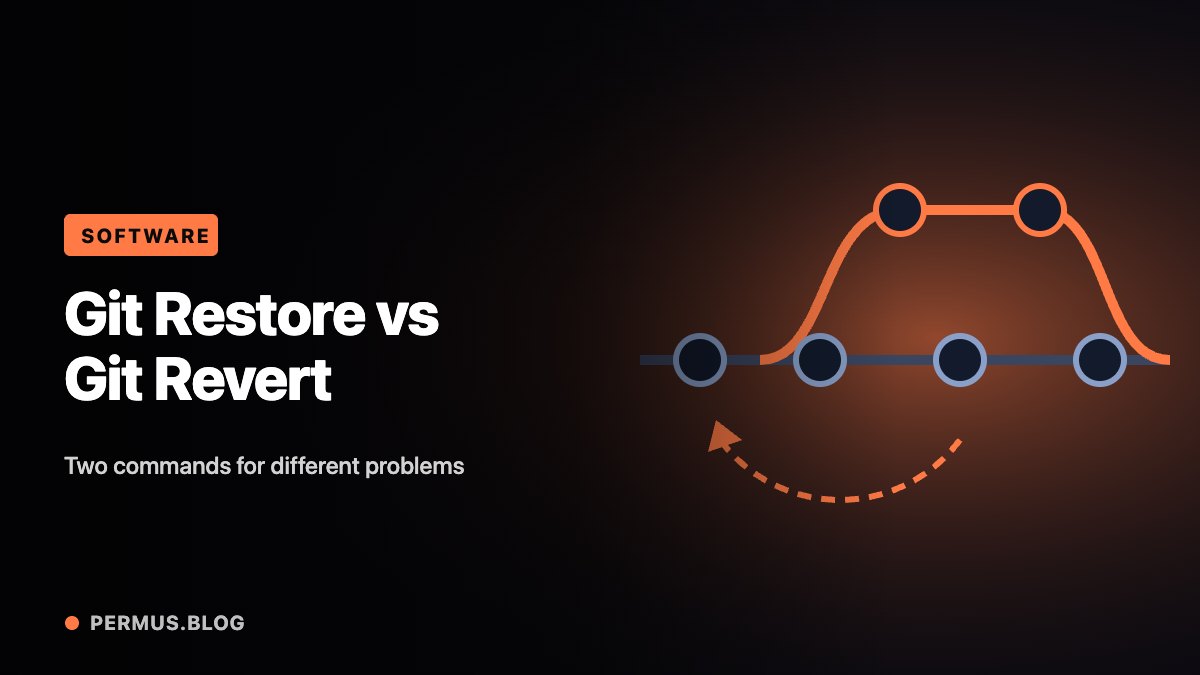
“Undo this change” is an incomplete instruction in Git. The change may exist only in a working file, may already be staged, or may belong to a commit that other people are using.
Choosing the right operation begins with identifying that state. git restore works with file contents and the staging area, while git revert records a new commit that reverses an earlier change.
Inspect before changing anything
Start with git status, then inspect the relevant differences. Git’s documentation distinguishes comparisons between the working tree and index, between the index and a commit, and between commits.
In a typical repository, git diff helps inspect unstaged changes, while git diff –cached shows staged changes relative to the current commit.
This matters when one file contains both work you want to keep and an edit you want to remove. The filename alone does not describe everything at risk.
Use restore for a specific content state
Git documents restore as a way to restore specified paths from a source. By default, restoring the working tree uses the index as the source; with –staged, the default source is HEAD.
That distinction explains a common surprise: unstaging a file and discarding its working changes are different operations.
For example:
git restore --staged -- report.txtThis ordinarily removes the staged difference while retaining the working file. By contrast, restoring a working file can overwrite uncommitted content, so inspect and preserve anything needed first.
Use explicit paths instead of broad commands when only one file needs attention.
Use revert to record a reversal
Git’s revert command creates new commits that reverse the effect of selected earlier commits. It provides a visible record of the reversal instead of simply extracting an older file.
The documentation requires a clean working tree for the normal operation and explains the difference between reversing a commit and discarding uncommitted changes.
This can be useful when a faulty change has already entered a shared branch. The original commit and its reversal remain part of the project’s history.
Verify behavior after the operation
A successful command does not establish that the application now behaves correctly. Inspect the resulting diff and run the checks relevant to the affected behavior.
Consider a commit that changed both a calculation and its configuration. Reversing only one file may leave an inconsistent combination. Conversely, reverting the whole commit may also reverse an unrelated change that still matters.
Read the selected commit before deciding on the scope. If later work depends on it, review those dependencies as well.
Practice these operations in a disposable repository with a few small files. Create a staged change, an unstaged change, and a committed change, then observe each command’s effect.
The essential habit is to name the desired outcome precisely: unstage this edit, restore this file’s content, or record a reversal of this commit. Once the goal is clear, the command becomes easier to choose.