
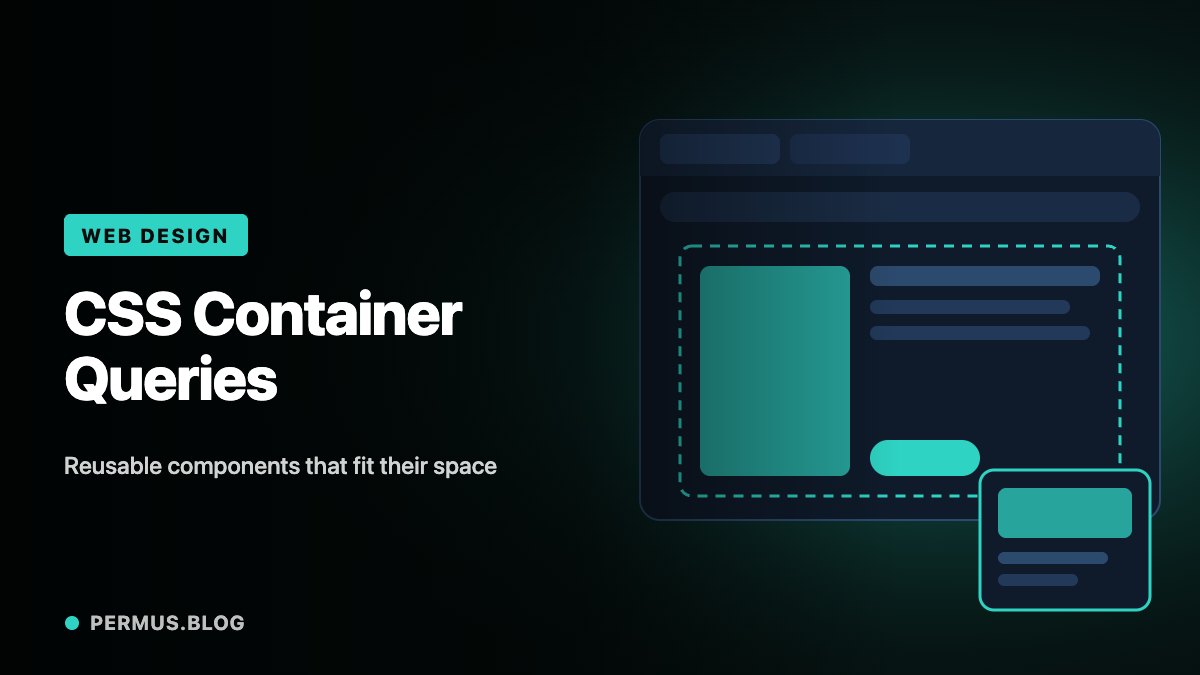
A component can have plenty of room on one page and very little on another, even when the browser window is exactly the same size.
An article card might occupy the main content column on a category page, a narrow sidebar beside a story, or one cell in a dashboard. Viewport-based breakpoints cannot fully describe those different placements.
CSS container queries allow a component’s presentation to respond to the space provided by an ancestor container. This makes them useful when a design system reuses the same component in several contexts.
Let the available space drive the layout
MDN distinguishes container queries from viewport media queries: container size queries respond to a container’s dimensions. A containment context must be established before those dimensions can be queried.
For a reusable card, the useful question becomes whether its allocated space can support a wider arrangement.
A narrow card might place its illustration above the text. A wider placement might put the illustration beside the text. Both can exist on the same page without requiring the entire viewport to cross a single shared breakpoint.
This approach keeps the component’s behavior closer to the conditions that actually affect it.
Start with a usable default
Build the compact version first. Its title, description, and action should remain understandable before any query adds a more spacious layout.
A small illustrative rule might look like this:
.card-slot {
  container-type: inline-size;
  container-name: story;
}

.story-card {
  display: grid;
  gap: 1rem;
}

@container story (min-width: 34rem) {
  .story-card {
    grid-template-columns: 10rem 1fr;
  }
}
Here, the wrapper establishes the query container, while the card inside it receives the layout change.
MDN documents inline-size for querying the inline dimension and explains that naming a container can make the intended query target clearer. In a common horizontal writing mode, the inline dimension corresponds to width.
The example’s threshold is a design choice, not a universal recommendation. Adjust it according to the actual content and layout.
Test content pressure
A component should be tested with more than a short placeholder heading.
Try a long title, a missing image, a translated label, and an unusually long word. Place the component inside a narrow sidebar and a wide main column. Then resize the containing layout while keeping the browser viewport unchanged.
That last test is especially useful. It demonstrates whether the component responds to its allocated space or still depends on assumptions about the overall page.
Also inspect the component at increased text size. A horizontal arrangement that appears comfortable with one line of text may become cramped when the same content wraps.
Keep page and component responsibilities clear
Container queries do not require abandoning media queries. A page can still respond to viewport conditions while individual components adapt to their own containers.
For example, the page may change from one column to two. The card inside either column can independently choose its internal arrangement.
Document those responsibilities in the design system. Page layout rules should explain how space is allocated; component rules should explain how that space is used.
The result is easier reuse. Designers and developers can place a component in a new context with fewer special-case overrides, while retaining a readable default when space is limited.