A monitor’s advertised refresh rate describes a capability, not necessarily the mode currently selected in Windows. After changing a cable, adding a dock, or connecting another screen, the active configuration deserves a fresh check.
The goal is to confirm the complete display mode: the intended monitor, its resolution, and the refresh rate available through the current connection.
Inspect the selected display first
In Windows 11, use Settings, System, Display, and Advanced display to inspect the relevant screen. If more than one monitor is connected, select the correct display before changing its refresh rate.
Microsoft explains that the available refresh rates depend on the display and its supported modes. The menu therefore reflects the configuration Windows can currently offer rather than a promise that every advertised combination is available.
Record the starting settings. A quick note containing the monitor model, connection path, resolution, and refresh rate makes later comparisons more useful.
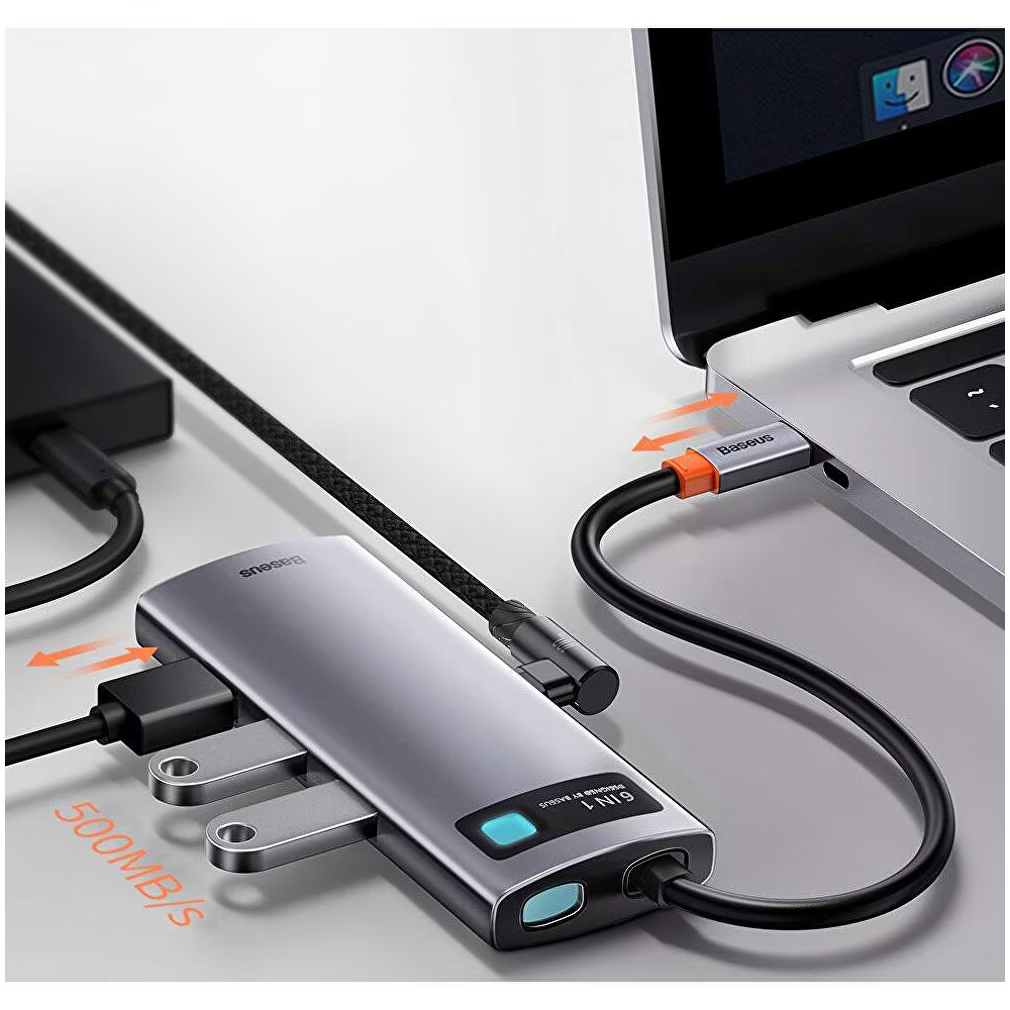
For example, distinguish “laptop directly connected to monitor” from “laptop connected through a dock.” Those are different configurations, even when the screen is unchanged.
Check resolution and refresh together
Microsoft notes that an asterisk can identify refresh-rate choices that do not support the current resolution. Selecting such a rate causes the resolution to change.
That is why choosing the largest number in the dropdown is not a complete setup strategy.
For an editing workstation, a lower resolution may make the workspace less useful even if movement appears smoother. For another workload, a different tradeoff may be acceptable.
Evaluate the resulting mode against the actual task. Read small text, inspect the desktop layout, and open the application that motivated the adjustment.
Do not judge the result solely by moving the pointer across an otherwise empty screen.
Investigate missing options systematically
If an expected mode is absent, consult the monitor and computer documentation for the supported connection combinations.
Review the entire path, including any adapter or dock. Avoid buying a replacement cable before establishing which component or mode is in question.
A useful diagnostic comparison is a direct connection using equipment already available and documented as suitable. Change one part of the path at a time and inspect the available modes again.
Also confirm the exact monitor model. Similar product names can refer to different variants, and specifications from a neighboring model may not apply.
Verify after normal use
Once the desired mode is selected, test the computer through the transitions you regularly use: reconnecting the monitor, returning from sleep, or attaching the dock.
If the mode changes unexpectedly, record the conditions under which it happens. A reproducible description is more helpful than a general report that the display “feels slow.”
Keep the final configuration documented for shared workstations. Another user should be able to identify the intended resolution and refresh rate without repeating the investigation.
A high-refresh display is useful only when the complete connection and selected mode support the intended experience. Checking the active settings turns a specification-sheet expectation into an observable result.