
The built-in Snipping Tool feature doesn’t just take screenshots. It can record screencasts, too!
Did you know Windows 11 has a built-in tool for capturing screenshots and recording screencasts? It’s called the Snipping Tool and you can launch it by either using the Windows key + Shift + S keyboard shortcut or by searching the Start menu for “snipping tool”.
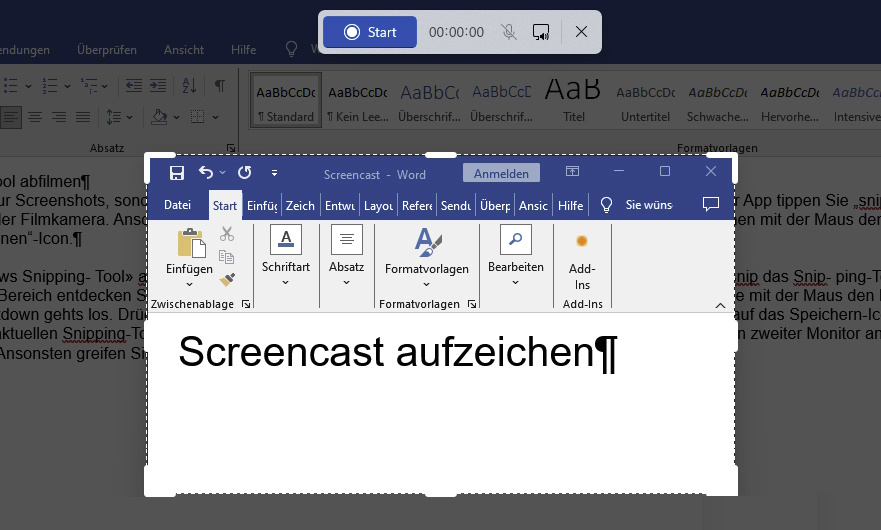
Once the Snipping Tool is open, you can record a screencast by toggling the mode from screenshot to screencast (by clicking the film camera icon). Then, drag your mouse cursor to define the area you want to record, whether it’s an entire window or just a certain section.
Then, to start recording, click on the Start button:
IDG
After a three-second countdown, the tool will begin recording. You can do whatever you want on screen and it’ll be recorded in the screencast. Use the Pause button to temporarily pause or the Stop button to end recording altogether. Use the Microphone and Speaker buttons to mute or unmute the recording of microphone and/or system audio.
When you’re finished, you can then play the recorded video in the snipping tool using the Play button. To save the recording, click on the small Save in the top right-hand corner of the Snipping Tool.