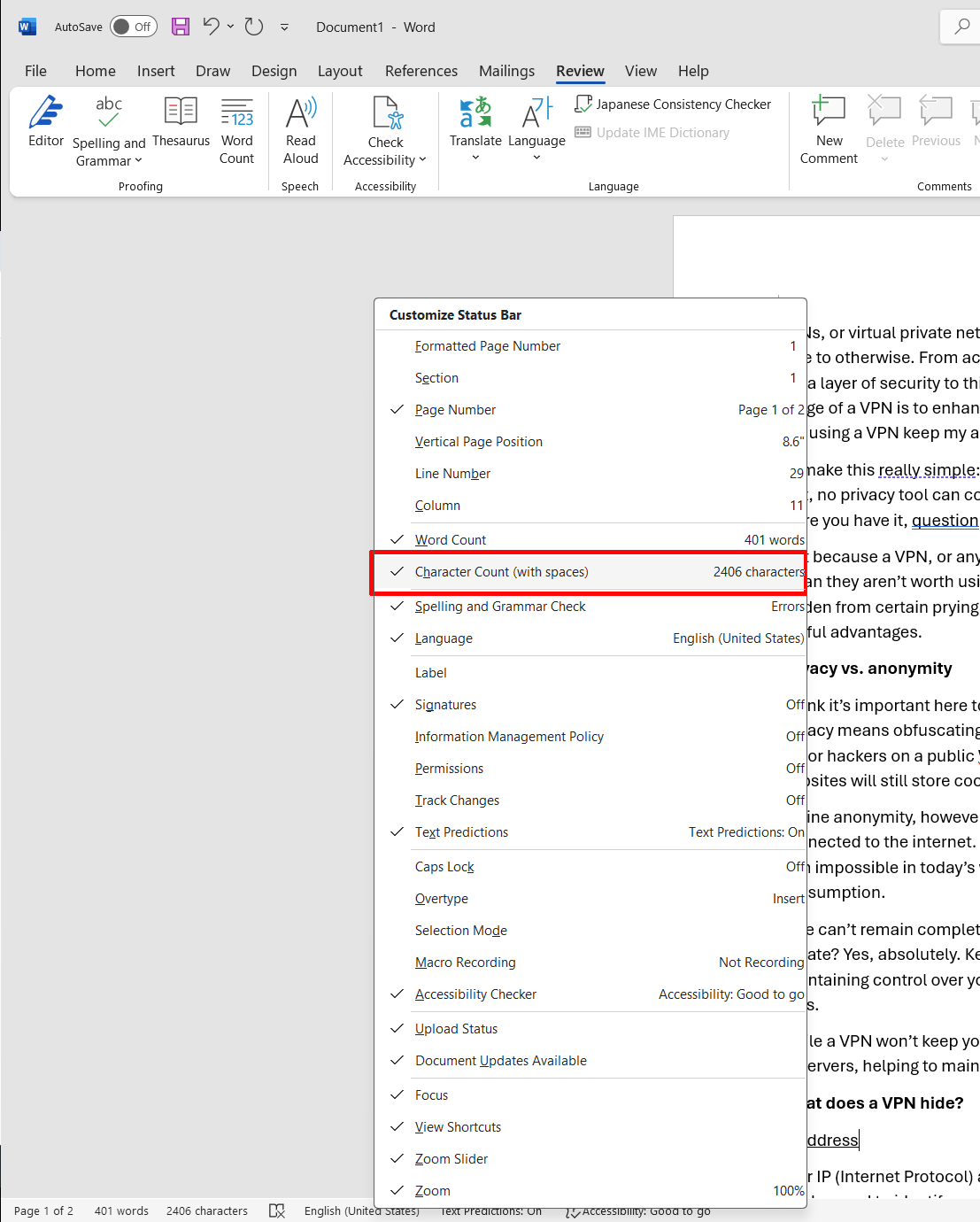

Microsoft Word displays the word count in the status bar at the bottom left, but you can also have it permanently show the character count as well.
Word already displays the number of words in a document in its status bar for all versions. This number appears at the bottom, second to the right after the number of pages in the document.
If you need more precise information though, such as the number of paragraphs or lines, you can click on the word count in the status bar. The “Word count” window then opens with further information.
However, if you frequently need to know how many characters a text has, you can also display this information permanently in the status bar. To do this, simply right-click anywhere on the status bar and select “Character Count (with spaces)”. A check-mark will be displayed next to the option in the menu and you will now see the character count displayed permanently on the status bar next to your word count.