
AI-Driven RAM Shortage Pushes PC Upgrade Costs Higher — Here’s How to Get More From Your Existing Memory
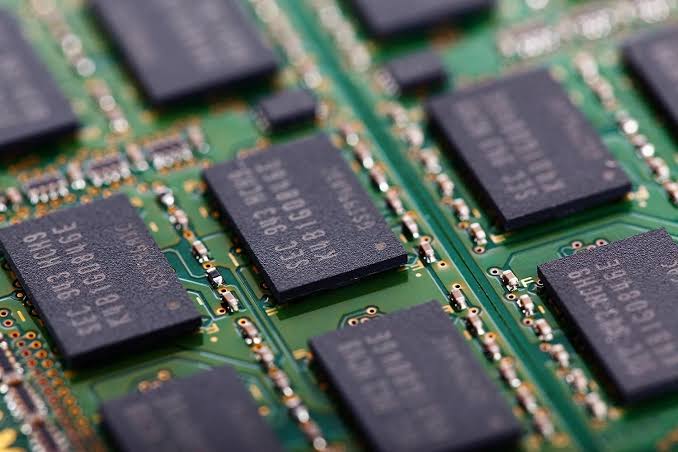
The ongoing AI boom continues to strain the global memory market, sending RAM prices sharply higher and making PC upgrades significantly more expensive. According to TrendForce, traditional DRAM prices rose by around 90% during the first quarter of 2026, while HP says memory and SSDs now account for roughly 35% of a PC’s manufacturing cost, compared with just 15–18% previously.
With analysts expecting elevated prices to persist until at least 2027, optimizing the memory already installed in your PC has become more important than ever.
Verify How Much RAM Windows Can Actually Use
Before making any changes, check how much memory your system is using.
Open Run (Win + R) and enter:
msinfo32
In System Information, pay attention to:
- Installed Physical Memory (RAM) — total installed memory.
- Total Physical Memory — memory Windows can actually use.
- Total Virtual Memory — combined RAM and page file capacity.
You can also open Task Manager (Ctrl + Shift + Esc) and navigate to Performance → Memory to monitor:
- Hardware Reserved memory (often used by integrated graphics).
- Committed memory, which shows current memory demand versus the maximum available.
If committed memory approaches the limit, Windows may become unstable or begin relying heavily on virtual memory.
Check RAM Health and Performance
Windows includes a built-in memory diagnostic tool.
Search for:
mdsched.exe
Choose Restart now and check for problems to test your RAM.
For more thorough diagnostics, the article recommends MemTest86, which can detect intermittent memory errors under heavy workloads.
After confirming your RAM is healthy, verify it’s operating at full speed.
Using CPU-Z, check whether memory is running in:
- Dual Channel (recommended)
- Single Channel (reduced performance)
If dual-channel isn’t enabled, installing memory modules in the motherboard’s recommended slots (commonly A2 and B2) may resolve the issue.
Enable XMP or EXPO Profiles
Many systems run RAM below its rated speed by default.
Inside your motherboard’s UEFI/BIOS, enable:
- XMP (Intel systems)
- EXPO (AMD systems)
Typical locations include:
- ASUS: Ai Tweaker
- MSI: OC
- Gigabyte: Tweaker
- ASRock: OC Tweaker
Selecting Profile 1 usually enables the manufacturer’s rated memory frequency and timings.
Reduce Background Memory Usage
Memory shortages often result from background applications rather than the software you’re actively using.
Task Manager can sort processes by memory consumption to identify heavy applications.
The article also recommends disabling optional Windows features that continuously consume RAM, including:
- Widgets
- Extensive Windows Search indexing
- SysMain (formerly Superfetch)
Disabling SysMain through services.msc can free memory, although applications may launch slightly slower after restarting the PC.
Optimize Your Web Browser
Modern browsers are often the largest consumers of RAM.
Recommended settings include:
Microsoft Edge
Enable Sleeping Tabs:
Settings → System and Performance
Google Chrome
Enable Memory Saver:
Settings → Performance
Mozilla Firefox
Within:
about:config
Set:
browser.tabs.loadInBackground = false
This prevents inactive background tabs from consuming memory until they’re selected.
Disable Windows AI Features
Windows 11 AI features can also occupy system resources.
The article suggests disabling:
- Recall, using an elevated PowerShell command.
- Windows Copilot, via either Group Policy (Windows Pro) or Registry Editor (Windows Home).
These changes can reduce background memory usage, although the article notes they require administrative access.
Configure the Page File Properly
Rather than disabling the Windows page file, the article recommends optimizing it.
Open:
sysdm.cpl
Navigate to:
Advanced → Performance → Settings → Advanced → Virtual Memory
Recommendations include:
- Place the page file on your fastest SSD.
- Set a Custom Size.
- Use identical values for the minimum and maximum size.
- Allocate roughly 1.5 to 3 times the amount of installed RAM.
Using a fixed-size page file reduces resizing overhead and minimizes fragmentation.
High Memory Prices Make Optimization More Valuable
With DRAM prices expected to remain elevated well into 2027, upgrading from 8GB or 16GB of RAM may no longer be the affordable option it once was. While software optimization cannot replace additional physical memory, the article argues that properly configuring Windows, browsers, BIOS settings, and virtual memory can help extend the usable life of existing systems until memory prices eventually return to more normal levels.