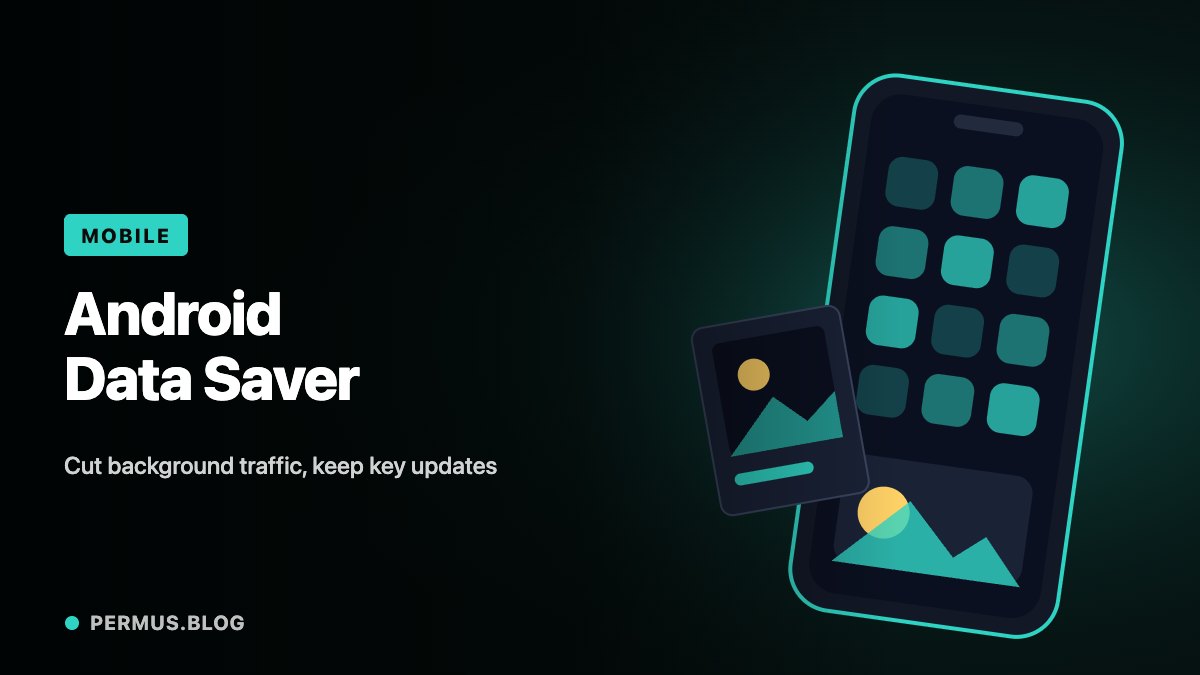
A phone can use mobile data while it sits in a pocket. Applications may retrieve information, synchronize content, or prepare updates without being open on the screen. Android’s Data Saver helps limit this activity, but it is useful to understand exactly what the setting changes.
Data Saver is a background-data control. It should be configured around the services you need, then checked during normal use rather than treated as a guarantee that mobile-data consumption has stopped.
Understand which activity is restricted
Google explains that Data Saver lets most applications and services retrieve background data only over Wi-Fi. Applications and services that are currently active can still use mobile data.
That distinction matters when reviewing usage. Watching a long video in an active application can still consume mobile data even though Data Saver is enabled.
Similarly, the setting does not turn a mobile connection into Wi-Fi. It changes how much background activity is permitted over that connection.
On Pixel phones, the documented path is Settings, Network & internet, Data Saver. Other Android manufacturers may arrange or name their settings differently, so use the device’s own guidance if the menu does not match.
Give exceptions a specific purpose
Some applications need background access to behave as expected. Android provides an Unrestricted data list for applications and services that should continue using mobile data while Data Saver is active.
The setting is useful when there is a clear reason for the exception. For instance, someone coordinating field work may need a particular communication application to remain responsive away from Wi-Fi.
Begin with a small list of essential services. Adding every application as an exception undermines the purpose of the restriction.
Google also notes that Google Play can be affected when Data Saver is enabled and Wi-Fi is unavailable. Its help documentation describes how to allow the Play Store unrestricted background access when needed.
Test both active and background use
A practical check should include two situations. First, open an important application and confirm that it works over mobile data. Then leave it in the background and test the update or notification behavior you depend on.
These are different tests because an application that works while open may still behave differently in the background.
For example, a team communication tool might load new messages as soon as it is opened. That does not establish whether the phone receives the desired updates while the screen is off.
If something stops working, change one relevant setting at a time and repeat the test. Avoid granting unrestricted access to unrelated applications as a broad troubleshooting step.
Match the setting to a real routine
For a person who regularly moves between home Wi-Fi, public transport, and mobile-only work locations, the most useful configuration may be selective. Background downloads can wait, while a few essential services receive exceptions.
For someone mainly using Wi-Fi, the same setting may be a precaution against unexpected mobile activity during brief network changes.
Write down which applications received exceptions and why. Review the list after replacing an application or changing the way the phone is used.
Data Saver works best as a manageable policy: restrict background traffic by default, preserve specific services that matter, and confirm the outcome in the situations where the phone actually operates.