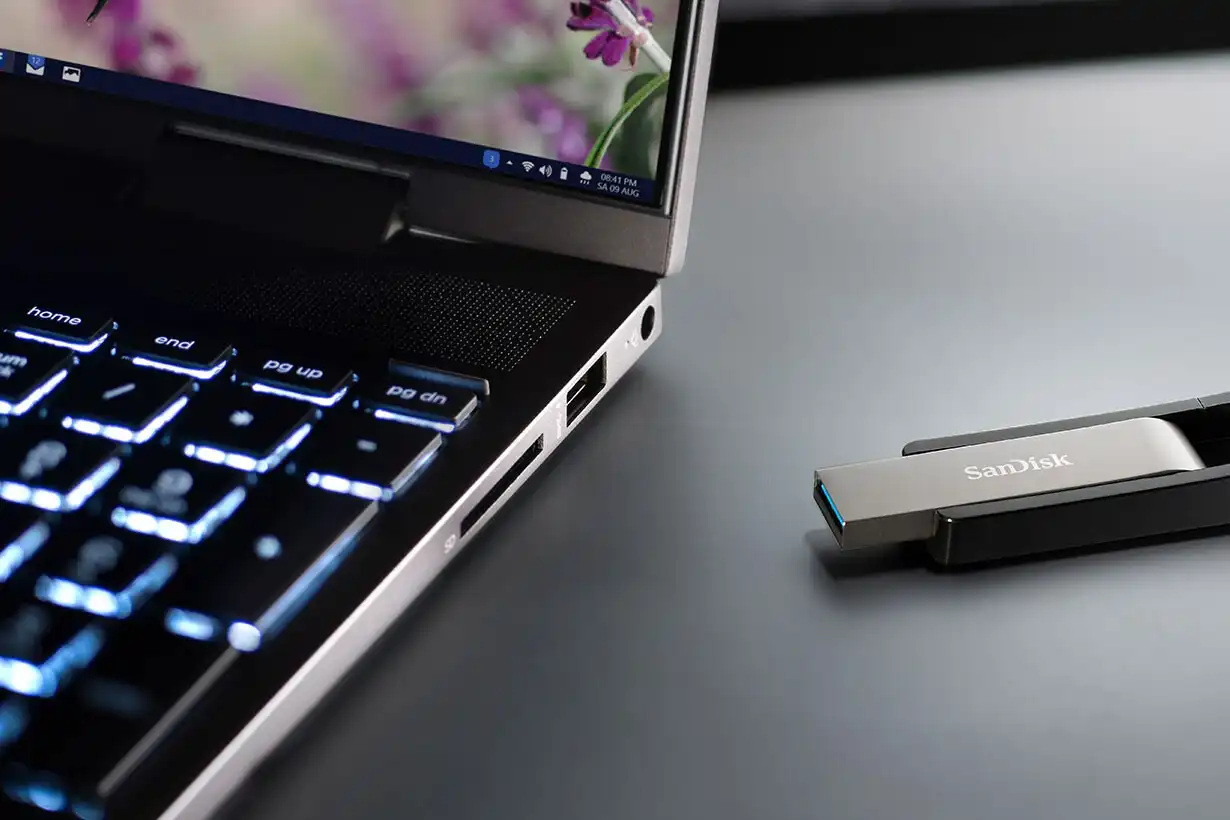
When you connect a USB stick to your computer, the “AutoPlay” notification appears by default. This is annoying, but there is a simple solution.
When you connect a USB stick to your computer, a notification with the title “AutoPlay” and the prompt: “Select an action for removable storage devices” appears by default.
After clicking on it, Windows offers you the following three options: “Configure storage settings,” “Open folder to view files,” and “Do nothing.”
The same happens if you have a memory card reader and insert a card. If this notification bothers you, simply deactivate it.
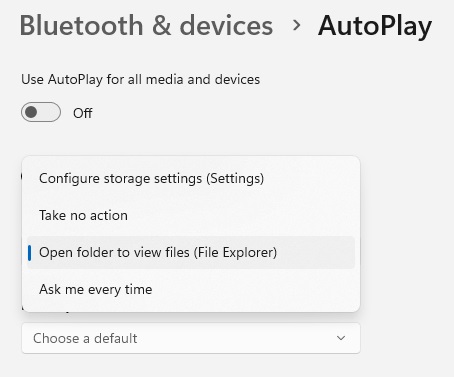
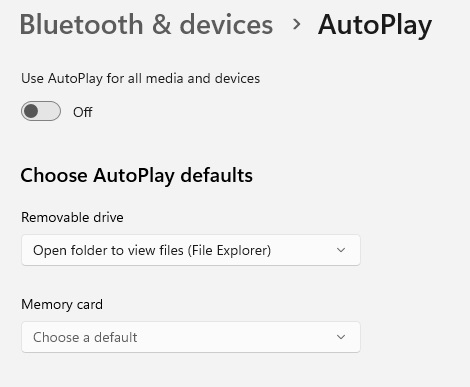
Open the Windows “Settings” in the Start menu and go to “Bluetooth and devices > AutoPlay.” There, please set the switch “Use AutoPlay for all media and devices” to “Off.”
Foundry
Alternatively, you can set predefined actions for USB sticks and hard drives (“removable drive”), memory cards, and possibly also for your smartphone (if it has already been connected to the computer).
To do so open the corresponding drop-down menu under “Choose AutoPlay defaults” in the same settings window and select a suitable action. With “Configure storage settings (settings),” the settings window “System > Storage” opens automatically after connecting the device.
Further reading: 7 ways Windows 11 collects your data – and how to opt out
Use “Take no action” to instruct Windows to stand still. Use “Open folder to view files (Explorer)” to open a window with the contents of the USB stick. And if you select “Ask me every time,” the notification window described at the beginning appears again.